


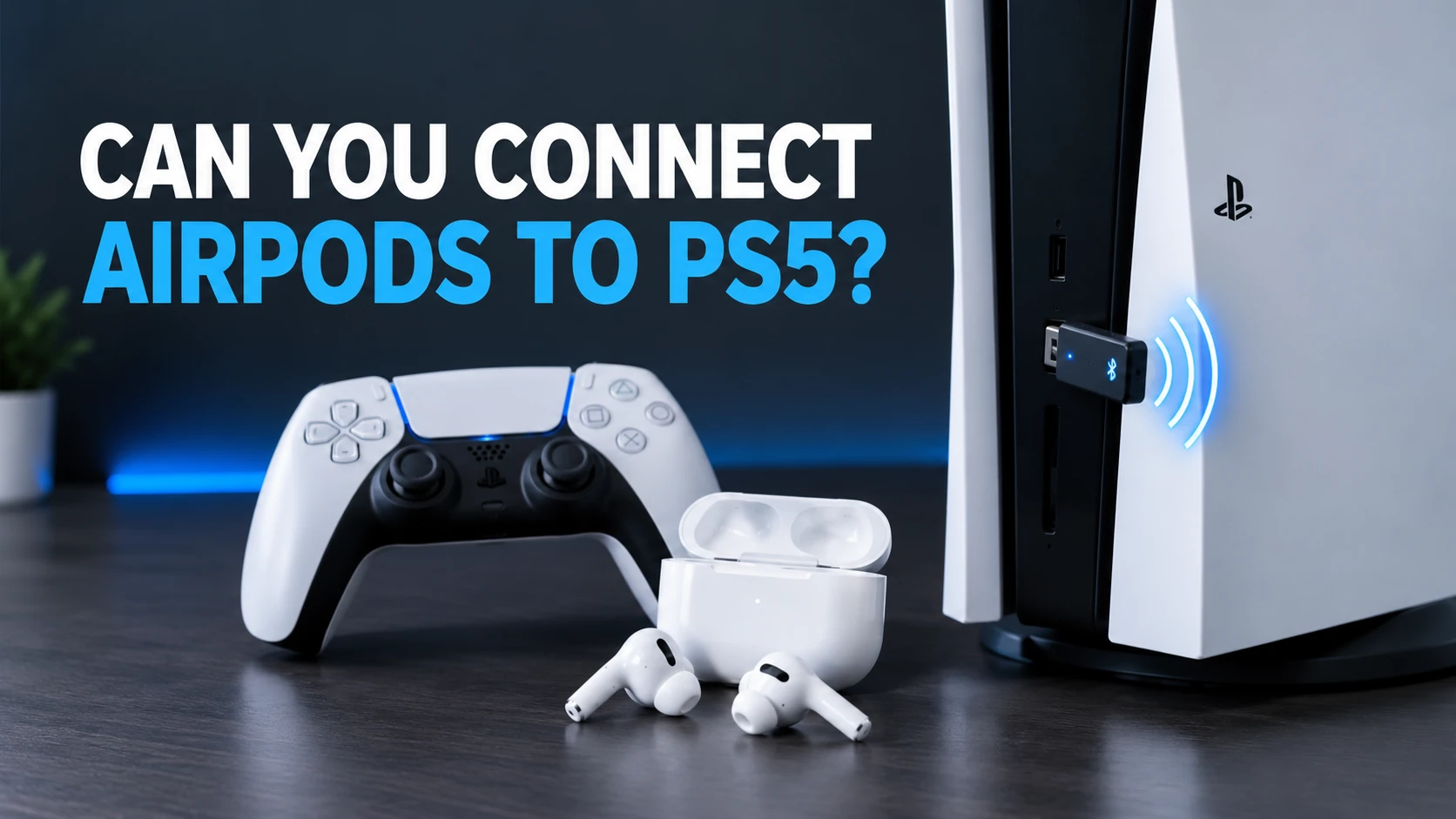
You can connect AirPods to a PS5, but not directly through the console’s standard Bluetooth settings. A compatible USB Bluetooth audio adapter is usually the easiest solution, while your TV or PS Remote Play can offer alternatives.
Whether you’re trying to enjoy a late-night gaming session, keep the noise down at home, or use the AirPods you already own, here’s how to make it work. For more console-related tips, explore our gaming guides.
Can You Connect AirPods to PS5 Directly?
No, the PS5 does not natively support standard Bluetooth audio headphones such as AirPods. Although the console uses Bluetooth for certain wireless accessories, regular Bluetooth earbuds won’t pair directly for game audio.
Sony’s Bluetooth headphone support guidance explains that Bluetooth audio connections aren’t supported because of potential latency and bandwidth limitations. Opening the PS5’s Bluetooth accessories menu and putting your AirPods into pairing mode won’t usually connect them for game audio.
Fortunately, there are several workarounds. Here’s how to use AirPods with your PS5.
1. Connect AirPods to PS5 Using a USB Bluetooth Adapter
Best for: People who want wireless game audio directly from their PS5.
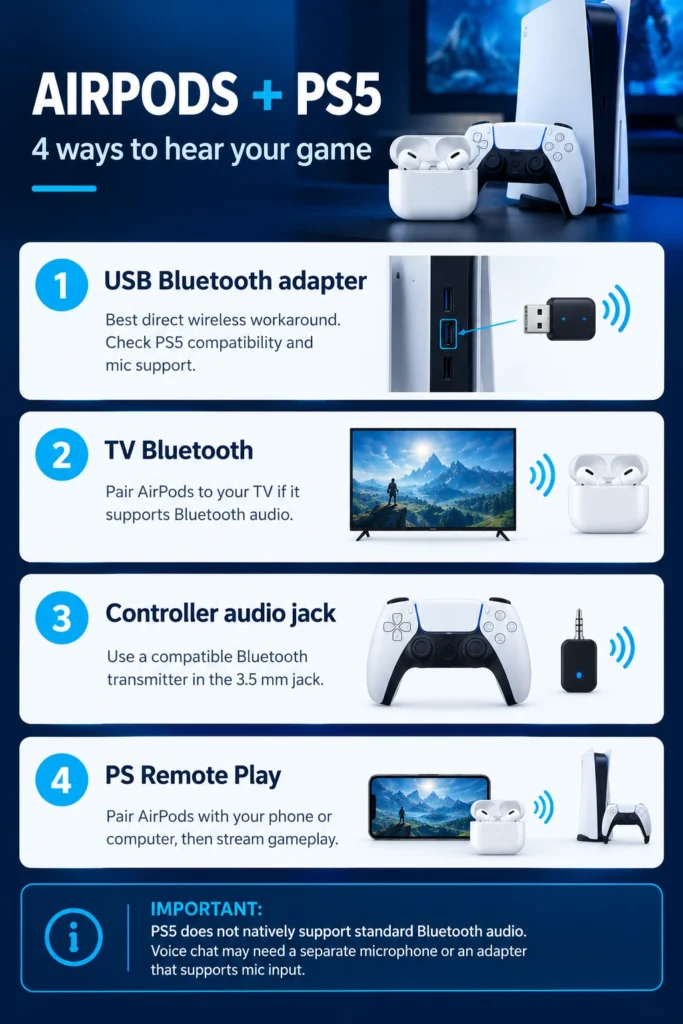
A compatible USB Bluetooth audio adapter is generally the most straightforward way to connect AirPods to a PS5. It acts as a bridge between the console and your earbuds, allowing the PS5 to send audio through the adapter instead of relying on native Bluetooth audio support. Adapter compatibility can vary, so check the manufacturer’s PS5 compatibility details before buying.
How to connect AirPods to PS5 with a USB adapter
- Get a compatible Bluetooth audio adapter. Choose a USB adapter that explicitly supports PS5 audio output. For multiplayer voice chat, look for a model that also supports microphone input.
- Plug the adapter into your PS5. Connect it to a compatible USB-A or USB-C port and select console mode if the adapter offers different modes.
- Put your AirPods into pairing mode. The process varies by AirPods model. Follow Apple’s official pairing instructions for your case.
- Pair the AirPods with the adapter. Activate pairing mode on the adapter and keep the earbuds nearby until they connect.
- Select the adapter as the audio output. On the PS5, go to Settings > Sound > Audio Output > Output Device and select the USB audio adapter if it appears. Test the sound in a game.
Sony does not guarantee the compatibility or performance of third-party Bluetooth adapters. If an adapter does not work, check the manufacturer’s compatibility list before assuming the AirPods are the problem.
2. Connect AirPods to Your TV Instead of Your PS5
Best for: Anyone whose television already supports Bluetooth audio output.
If your TV supports Bluetooth headphone output, it can receive the PS5’s audio over HDMI and send that sound to your AirPods. This means you may not need a Bluetooth adapter connected to the console.
How to connect AirPods to your TV
- Turn on your television and open its Settings menu.
- Find the Bluetooth, Audio, Accessories, or Connected Devices section.
- Put your AirPods into pairing mode.
- Select your AirPods from the available Bluetooth devices.
- Set your TV’s audio output to the connected AirPods if necessary.
The exact menu names depend on your TV brand and model. Wireless audio can introduce delay in fast-paced games, and connecting AirPods to the TV does not automatically make their microphone available to the PS5 for multiplayer voice chat.
3. Use a Bluetooth Transmitter With Your PS5 Controller
Best for: Players who prefer a controller-based audio connection.
Another possible workaround is a Bluetooth audio transmitter designed to connect to the 3.5 mm headphone jack on your DualSense wireless controller. It takes audio from the controller’s headphone output and transmits it wirelessly to compatible Bluetooth earbuds.
How to use a controller Bluetooth transmitter
- Get a Bluetooth audio transmitter with a 3.5 mm plug designed for headphone audio.
- Connect the transmitter to the headphone jack on your DualSense controller.
- Put the transmitter into pairing mode.
- Put your AirPods into pairing mode.
- Wait for the devices to connect, then test your game audio.
You may need to adjust the PS5’s headphone output settings so game sound is routed through the controller. Check the transmitter’s specifications before buying: many transmitters support playback only and do not carry microphone audio back to the console.
4. Use AirPods With PS Remote Play
Best for: Players who want to use AirPods without purchasing a Bluetooth adapter.
You can connect AirPods to a compatible phone, tablet, or computer and play your PS5 through the PS Remote Play app. In this setup, the AirPods connect to the second device, not directly to the console. Remote Play streams gameplay and audio to that device.
How to get started with PS Remote Play
- On your PS5, go to Settings > System > Remote Play and enable Remote Play.
- Install the official PS Remote Play app on a compatible device.
- Sign in with the same PlayStation account you use on your console.
- Follow the app’s instructions to connect to your PS5.
- Pair your AirPods with your phone, tablet, or computer using its normal Bluetooth pairing process.
- Start playing and check that game audio comes through your AirPods.
Remote Play depends on your network connection and can introduce streaming latency, so it may not be ideal for competitive games where precise timing matters.
Which Method Is Best for Connecting AirPods to PS5?
The right choice depends on whether you care most about convenience, cost, or multiplayer communication.
| Method | Best for | Main drawback |
|---|---|---|
| USB Bluetooth adapter | Direct wireless game audio | Compatibility varies |
| TV Bluetooth | Players with a Bluetooth-compatible TV | Possible audio delay; microphone usually isn’t routed to PS5 |
| Controller audio transmitter | Controller-based connection | Voice chat depends on hardware |
| PS Remote Play | Playing without a dedicated adapter | Network quality can affect latency |
For most people, a USB Bluetooth audio adapter specifically designed for PS5 is the best starting point for direct wireless game audio. If you only need to hear the game and your TV already supports Bluetooth output, try that option first.
At a Glance: Four Ways to Use AirPods With PS5
Can You Use AirPods as a Microphone on PS5?
Yes, but only with a compatible setup. The AirPods microphone will not automatically work just because you can hear PS5 game audio through them. The adapter or transmitter must support microphone input and voice chat, and the PS5 must be configured to use the appropriate microphone device.
Some adapters support audio playback only. If voice chat is essential and your adapter does not support it, you can use another compatible microphone or the microphone built into your DualSense controller.
How to Fix AirPods That Won’t Connect to PS5
If you’ve tried one of these workarounds and still can’t hear anything, these checks may help. You can find more step-by-step advice in our how-to guides.
- Check adapter compatibility. Confirm that the adapter supports PS5 audio output and your intended connection method.
- Restart pairing. Disconnect the AirPods, put them back into pairing mode, and follow the adapter manufacturer’s instructions again.
- Check audio output. Open the PS5 sound settings and make sure the correct adapter or audio device is selected.
- Check competing connections. Temporarily disconnect your AirPods from nearby devices if they keep switching back to your phone or tablet.
- Check the microphone separately. If game audio works but voice chat does not, your adapter may support playback only.
- Consider latency. If sound arrives noticeably later than the on-screen action, try another compatible connection method.
Final Thoughts
So, can you connect AirPods to PS5? Yes—with the right workaround. The console’s lack of native Bluetooth audio support can be frustrating, but you don’t have to abandon your favorite earbuds or immediately invest in another headset.
Start with a compatible USB Bluetooth adapter if you want the most direct solution. Try your TV’s Bluetooth audio output if that option is already available, or use Remote Play when convenience matters more than minimizing latency. A little setup can make your next gaming session quieter and more comfortable.
Frequently Asked Questions
Yes, through alternatives such as a Bluetooth-enabled TV or PS Remote Play on a compatible device. However, you cannot pair standard Bluetooth audio headphones directly with the PS5 itself.
No. The PS5 doesn’t natively support regular Bluetooth audio headphones. To use AirPods, you’ll need a workaround such as a compatible adapter, TV audio output, or Remote Play.
Yes. AirPods Pro can be used with the same workarounds described in this guide. The important factor is whether your chosen adapter or device supports the connection.
Sometimes. You’ll need a compatible adapter or transmitter that explicitly supports microphone input and voice chat. An adapter that only supports game audio won’t be enough.
They can. The amount of delay depends on the audio connection, adapter, and setup. TV Bluetooth and Remote Play may introduce noticeable latency, so test your setup before relying on it for fast-paced competitive games.
For direct wireless game audio, a USB Bluetooth audio adapter that explicitly supports PS5 is usually the easiest option. Choose one with microphone support if you also want to use voice chat.
